Photography Tutorial · 2019-02-24
Nik Silver Efex: The Best Plugin for Black-and-White
Thomas Chu Photo
There are many ways to convert a color photo to black-and-white in Photoshop. Nik Silver Efex Pro is a PS plugin dedicated to black-and-white post-processing, and it is extremely powerful.
In this tutorial, Thomas demonstrates how to use this plugin for efficient black-and-white editing. Given the length, the full introduction is split into two parts.
1
Panel and Feature Overview
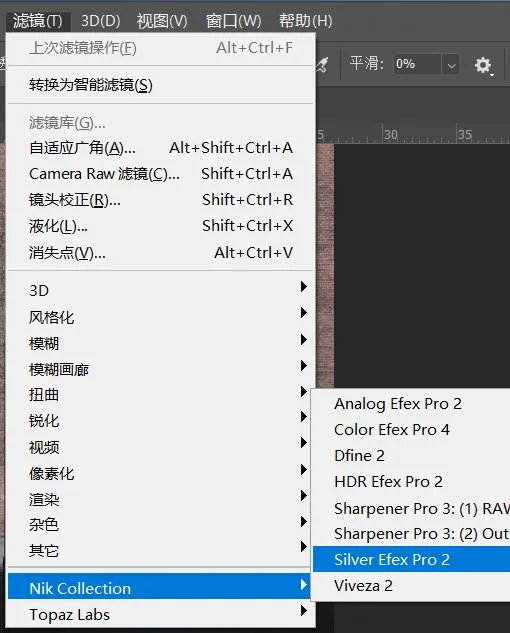
To use this plugin, first find and install Nik Collection. Then you can find "Filter - Nik Collection - Silver Efex Pro 2" in the menu.
Once Silver Efex Pro 2 opens, it is divided into left, center, and right panels. The center is the photo display area.
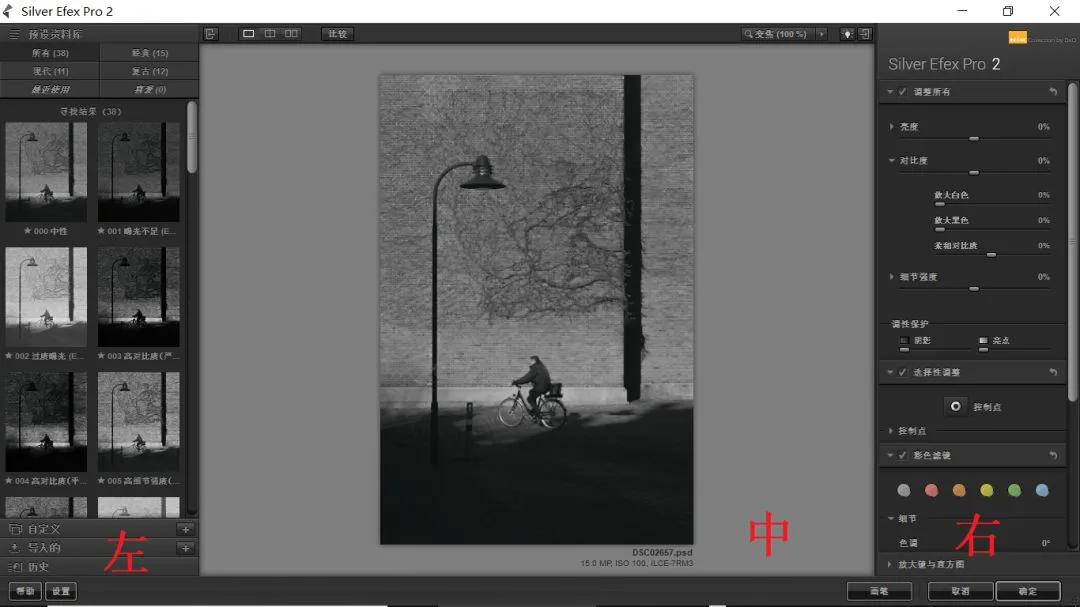
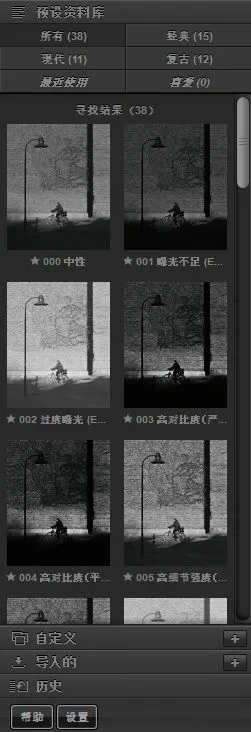
The left side mainly holds the preset list and history.
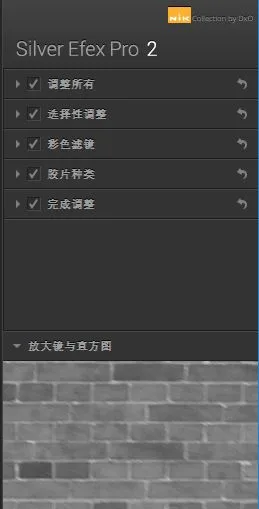
The right side is the parameter adjustment panel and histogram display.
2
Histogram and the Adams Zone System
Nik Silver Efex Pro is dedicated to black-and-white photography, so its histogram is special: it comes with Ansel Adams' Zone System built in, making it easy to analyze the photo.
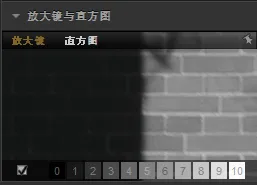
When you open the plugin, the lower-right corner shows the "Loupe & Histogram" feature. "Loupe" is selected by default; you need to click "Histogram" to see the photo's luminosity histogram.
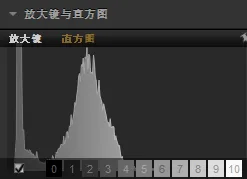
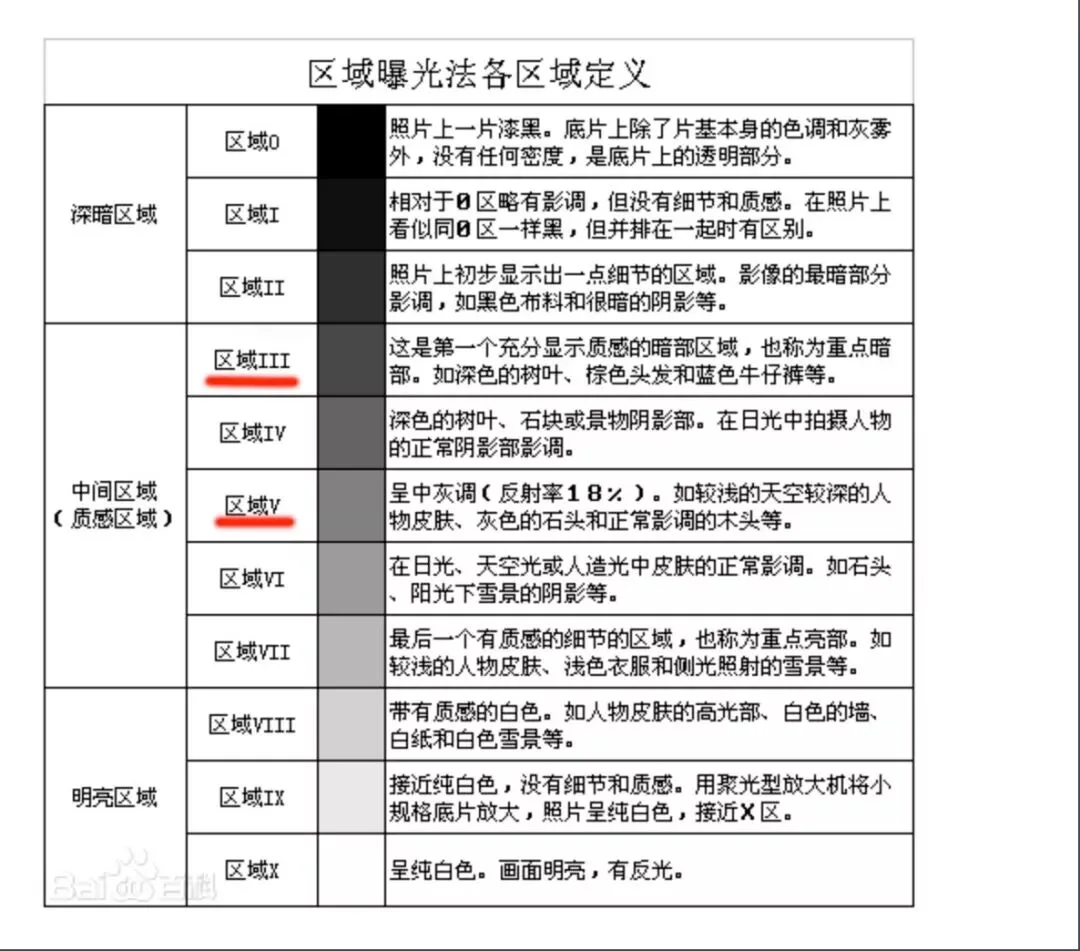
Below the histogram are 11 squares numbered 0-10, representing the 11 brightness zones of the Adams Zone System. The definitions of these 11 zones are shown in the image below.
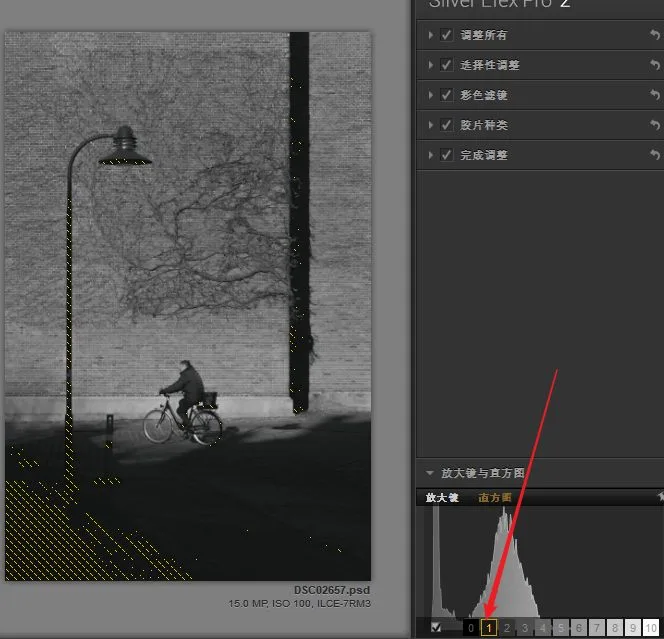
For example, when I click square "1", the deepest dark parts of the photo that belong to Adams Zone 1 are highlighted with dashed lines.
Clicking square "2" shows many dashed areas, meaning most of the shadows in this photo fall in Adams Zone 2.
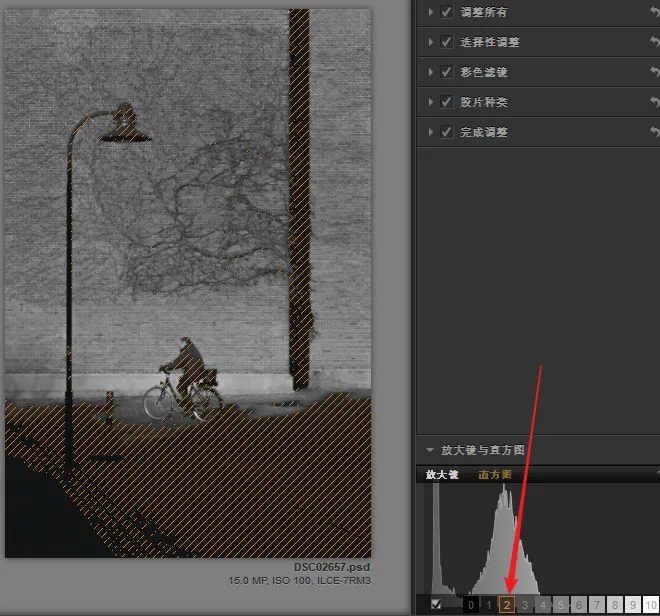
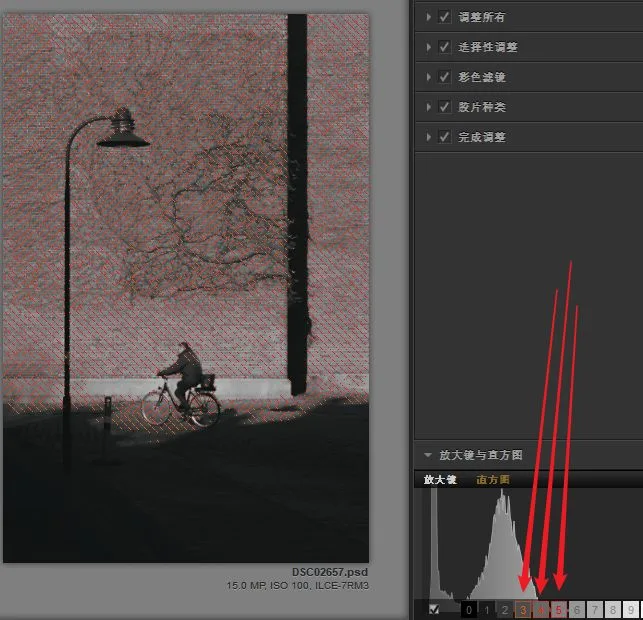
We can also select multiple numbered squares at once, such as 3, 4, and 5.
As you can see, most of this photo sits in the middle brightness of zones 3, 4, and 5 — the range best suited for showing detail and texture.
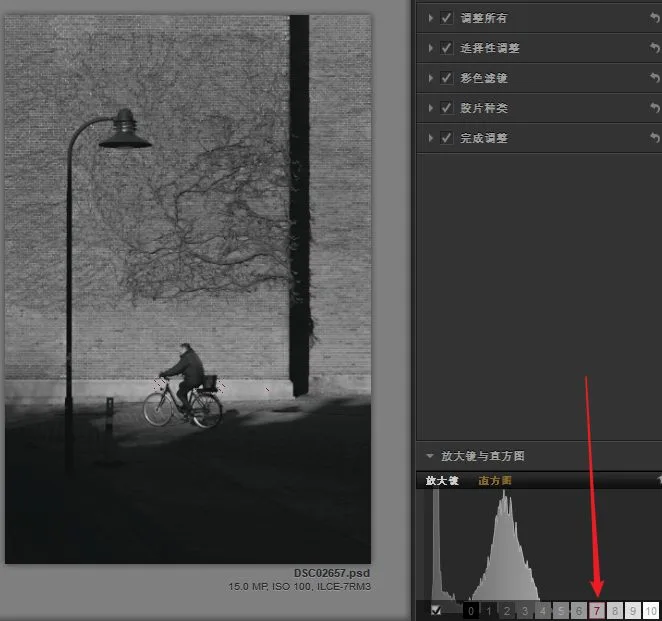
Adams Zone 7 represents bright areas that still hold detail. When I click square "7", almost no dashed lines appear, meaning this photo is actually lacking highlights.
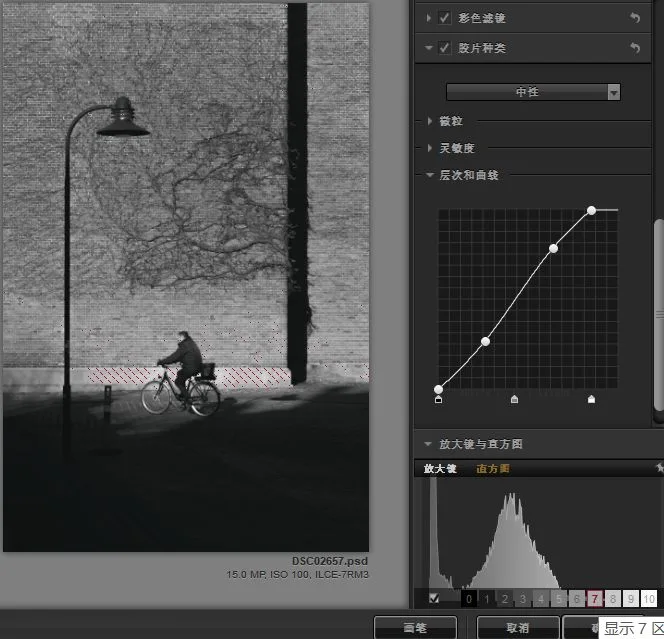
I can use the curves tool to brighten the highlights. Now when I select square "7" again, a section of wall behind the person shows dashed lines, belonging to Zone 7. Our image now has more bright areas and looks more natural.
3
Presets and History
Another great feature of Silver Efex Pro is its black-and-white preset library.
It can quickly convert a color photo into black-and-white styles such as high-key, low-key, high-contrast, or somber, giving us a fast starting point for further adjustments.
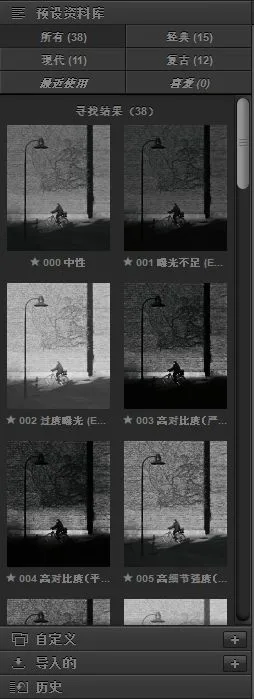
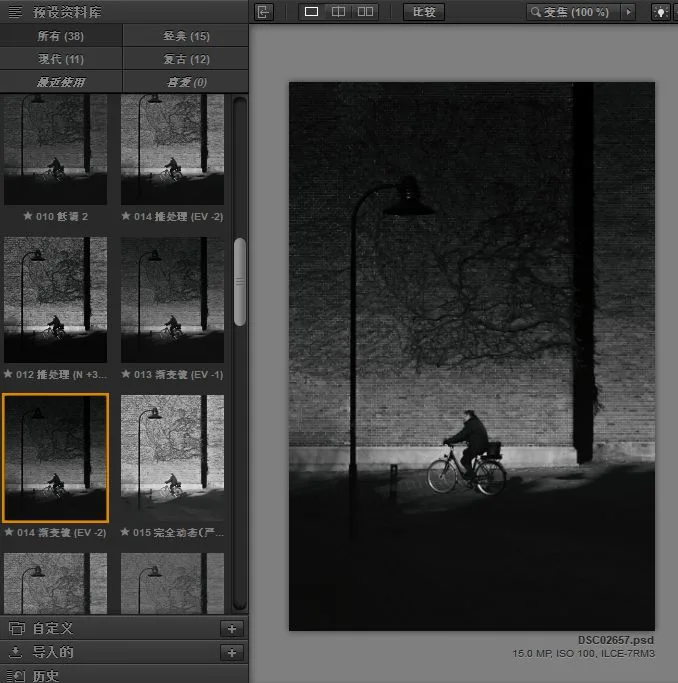
The preset panel sits on the left side of the plugin, with 38 built-in black-and-white presets. Each preset has a small preview thumbnail. For example, if I like the "Graduated" look, I can select that preset and apply it to the photo.
Now the top of the photo looks as if a dark-to-bright graduated filter was added. With the top darkened, the eye focuses more on the person, though the lines of the street lamp are not distinct enough.
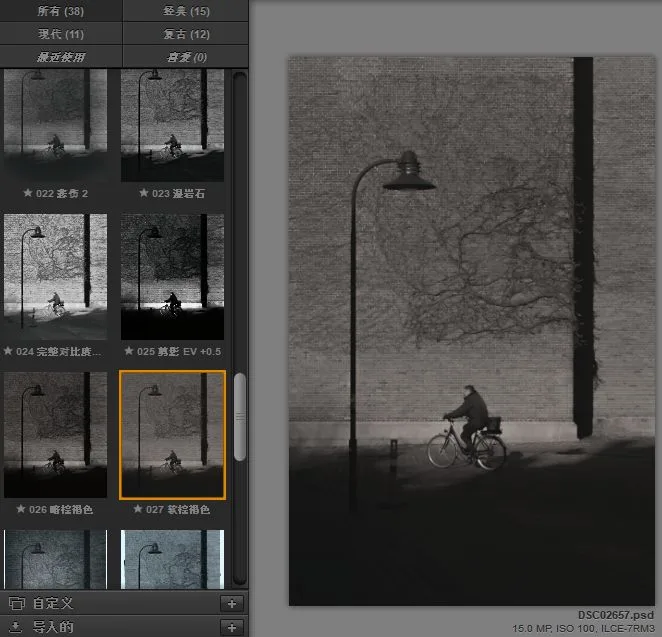
I can also try other presets — for example, the "Soft Sepia" preset gives us a yellowed vintage black-and-white photo.
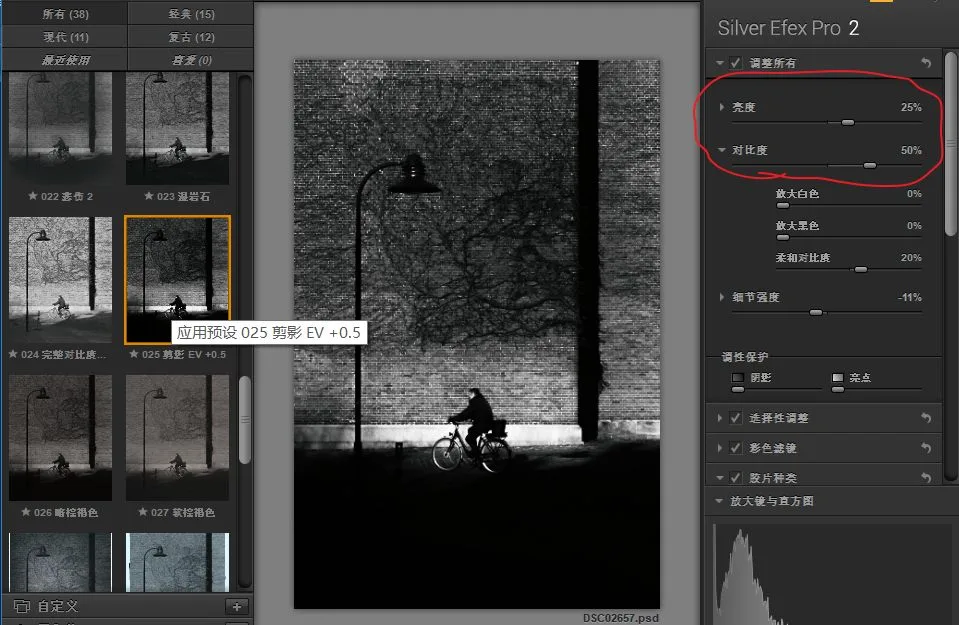
Each preset is really a collection of adjustment parameters. After I apply the "Silhouette" preset, you can see the brightness, contrast, structure, and other parameters in the panel have all changed.
We can then fine-tune these parameters on top of the preset.
Below the preset library list are "Custom" and "Imported" sections for creating and using your own presets or ones downloaded from the internet.
At the very bottom is the "History" list. Expanding it shows every operation we've performed in Silver Efex Pro, including preset applications and parameter adjustments.
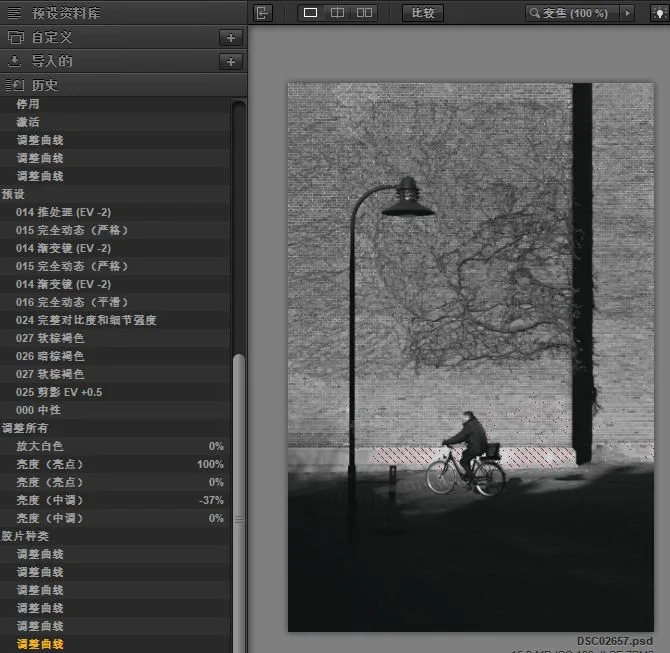
We can click any step to losslessly return to that state and redo everything after it.
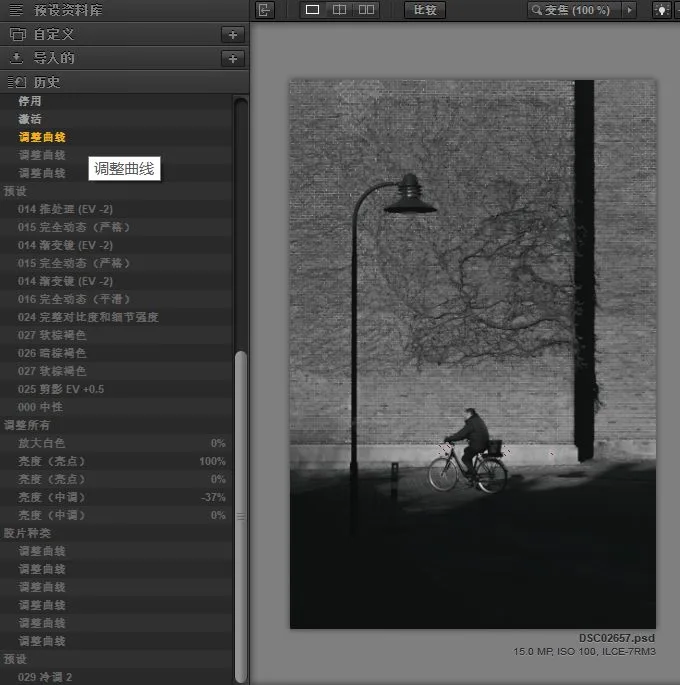
4
Before-and-After Comparison
In the middle of the plugin is the photo display panel.
At the top of the panel is a "Split Preview" feature. Clicking it divides the image in half with a red line.
The left side shows the original direct black-and-white conversion with no adjustments; the right side shows the result after presets and parameter changes.
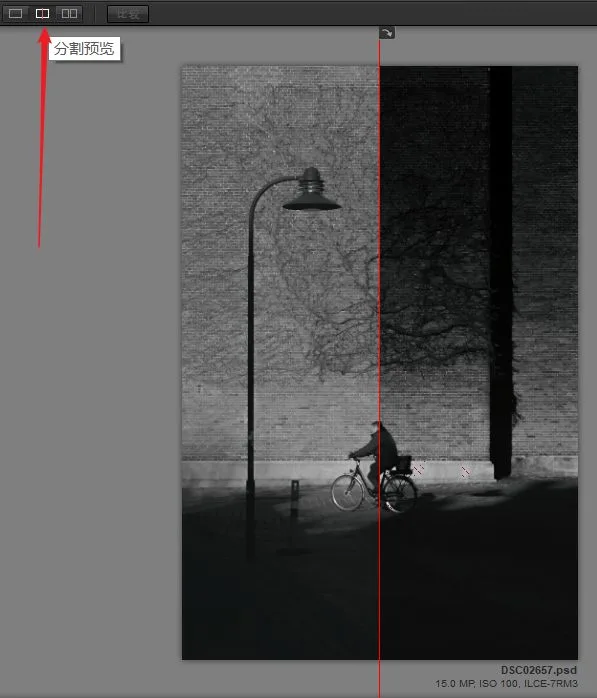
We can drag the red line left and right to preview the before-and-after difference at any spot.
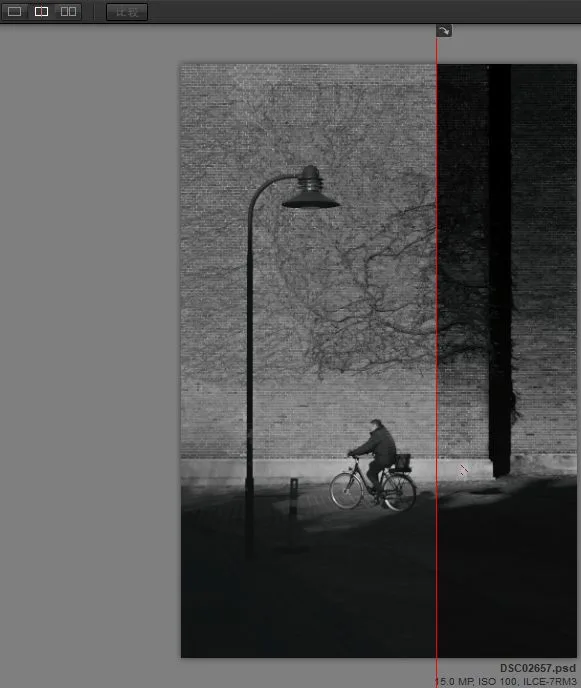
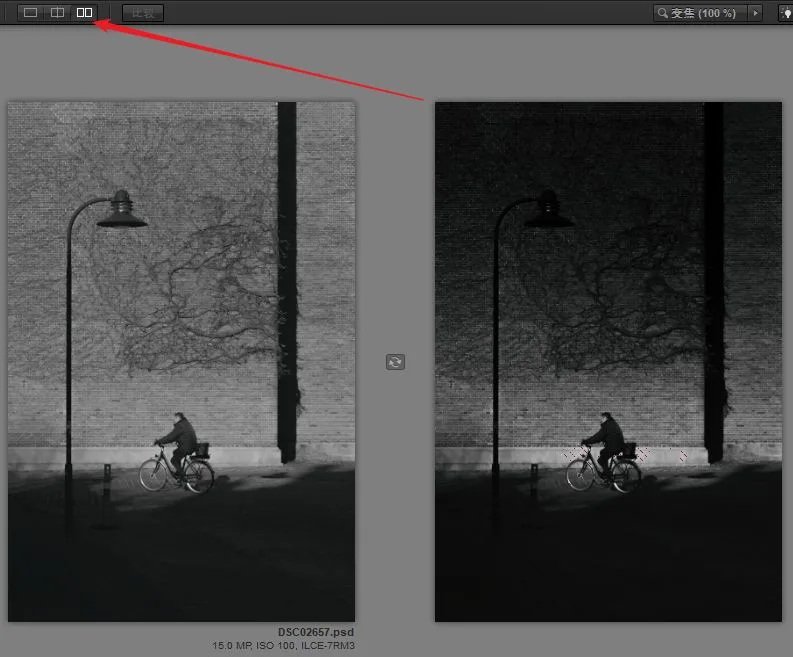
Next to "Split Preview" is a "Side-by-Side Preview" icon. Clicking it shows the before and after as two complete photos in the center of the plugin.
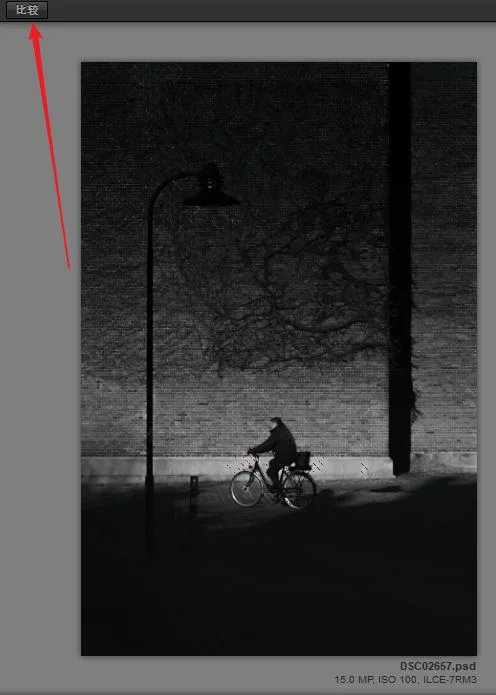
The "Compare" button is used in single-image preview. Click and hold "Compare" to see the before state.
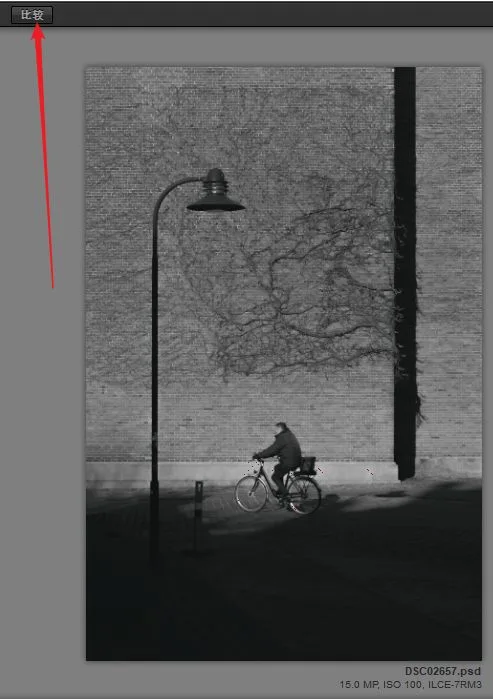
Release the "Compare" icon to return to the adjusted result.
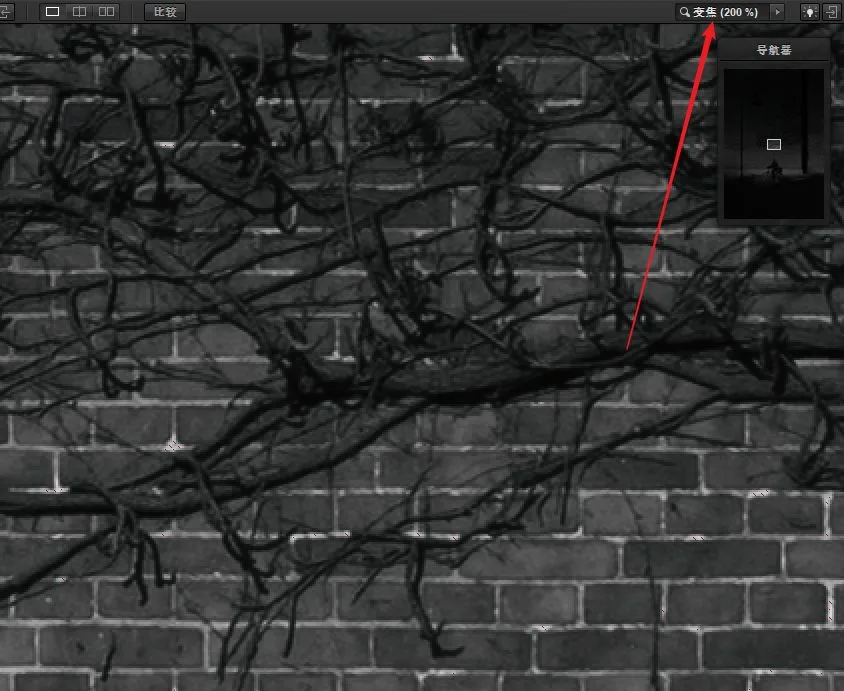
There is also a zoom function on the right, making it easy to magnify the photo and inspect adjusted details.
That covers Silver Efex Pro's histogram with the Adams Zone System, the preset library, and the before-and-after comparison features.
Of course, Silver Efex Pro's greatest strength is its parameter adjustment: it can apply different contrast and structure to different areas of the image, simulate color filters, emulate specific film stocks, and more.
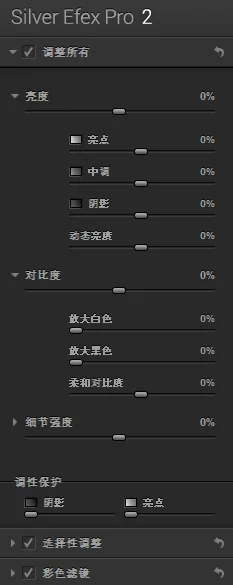
Thomas will continue sharing the parameter adjustment panel in the next installment.