Photography Tutorial · 2021-10-03
Strange Bands in Your Sky? Preventing and Fixing Color Banding in Post
Thomas Chu Photo
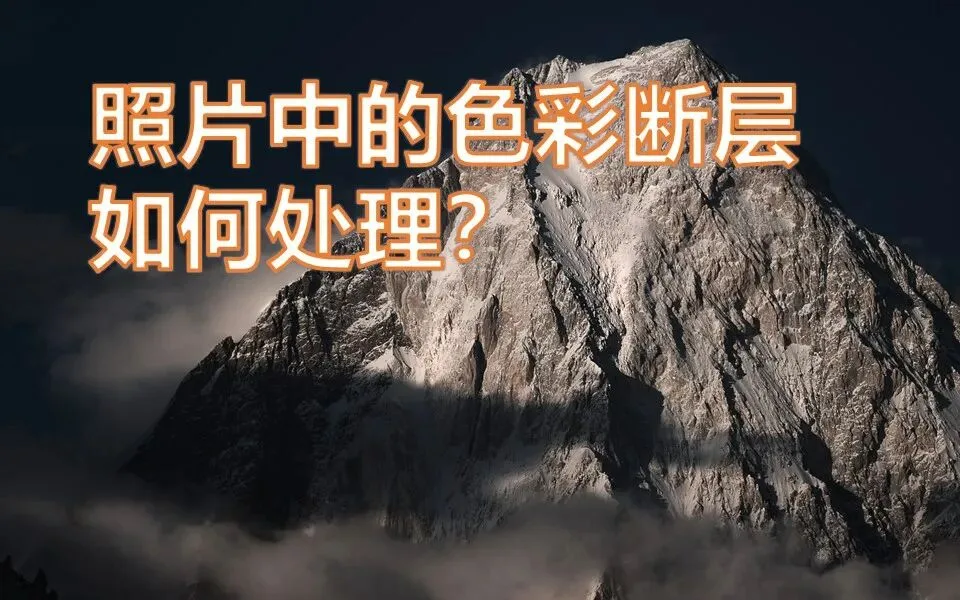
Color banding happens often in portrait shooting (solid-color backdrops) and landscape post-processing (gradient skies): what should be silky color turns into strange, blocky bands — enough to drive you mad.
Building on the article "Don't Let Color Banding Ruin Your Photos," this video goes further into the causes of banding, the 4 post-processing operations most likely to produce it, and 2 techniques for minimizing it.
Video Tutorial
▶ Watch the video tutorial on Bilibili
This is the illustrated companion to the video above. Thomas turned the 11-minute walkthrough into text and paired it with keyframe screenshots: what color banding is, why gradient skies suffer most, four post-processing moves that easily trigger banding (8-bit editing, heavy HSL adjustments, noise reduction, and motion blur), plus two fundamental fixes — higher bit depth and dithering — ending with a hands-on "50% gray overlay layer + Add Noise" rescue workflow.

Start with the overview: this summary slide, captured at 2:14 in the video, lists the four post-processing moves most likely to cause banding — editing in 8-bit, heavy HSL adjustments, noise reduction, and motion blur. Below, we first unpack what banding actually is, then go through these four red lines and their fixes one by one.
01 What Is Color Banding
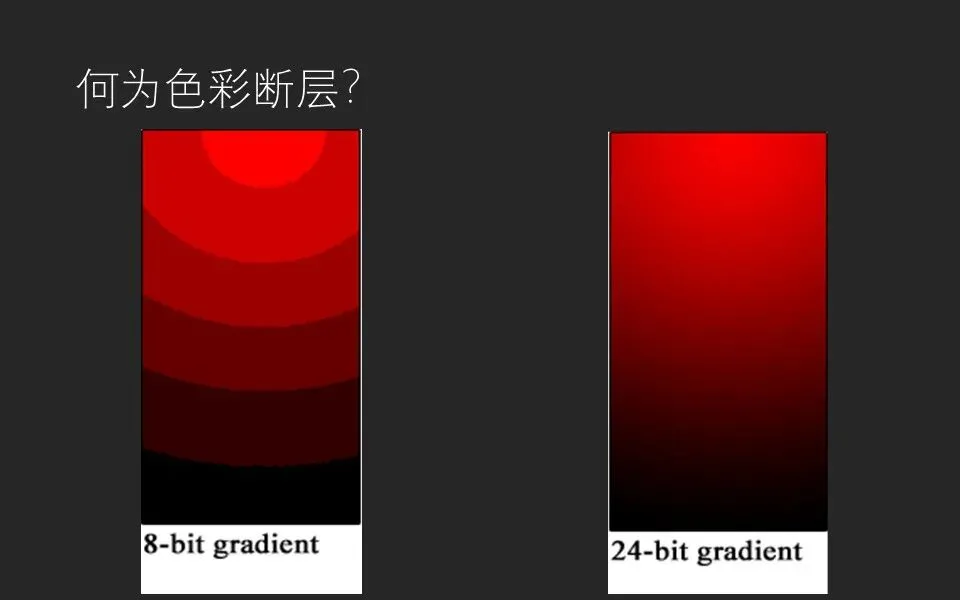
Colors in nature are continuous and subtle, but a computer can only display a limited number of them. A common 8-bit image holds just 2 to the 8th power — 256 levels — per channel. When the colors run out, what should be a smooth gradient steps down level by level, producing visible bands. It is the classic heartbreak in sunset and blue-hour sky photos (at 0:29 in the video).
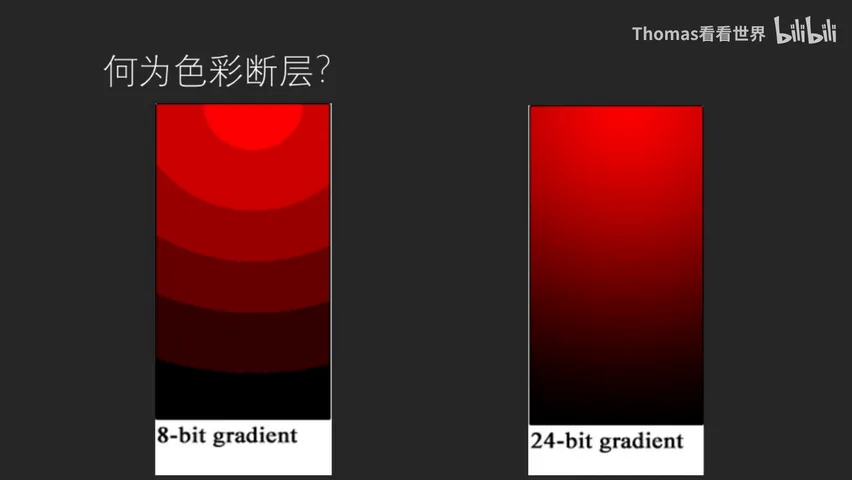
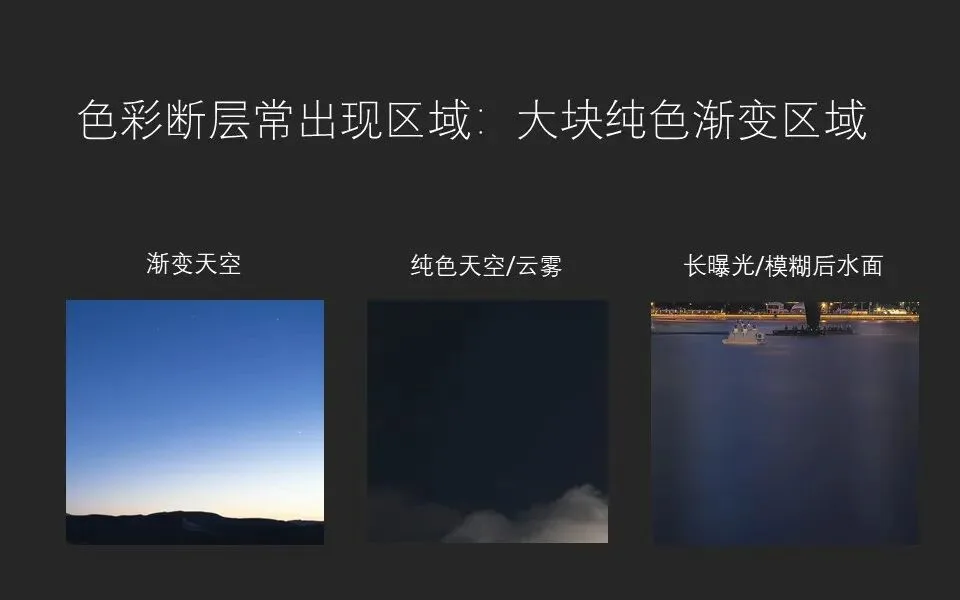
The comparison card at 0:45 makes it instantly clear: in the same red gradient, the 8-bit version breaks into concentric rings while the 24-bit version stays smooth. Banding does not threaten every photo — it targets "large areas of near-pure gradient color": gradient skies transitioning between warm and cool or bright and dark; whole skies that look flat but carry subtle brightness shifts; and water turned to mist by ND long exposures or motion blur — large, uniform, and gradated, hitting all three criteria (at 1:00-2:00 in the video).
02 Four Moves That Trigger Banding
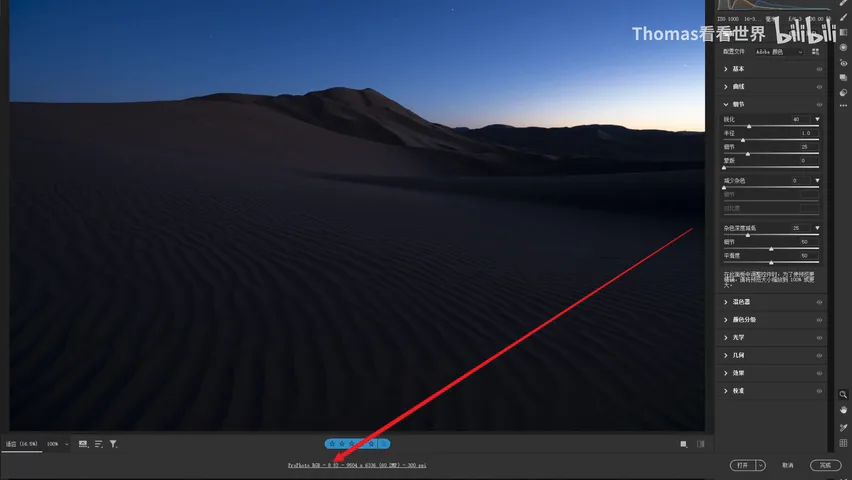
The first red line is editing in an 8-bit environment. Before entering Photoshop from Camera Raw or Lightroom, set the color depth to 16 bits/ channel in the workflow options at the bottom (at 2:14 in the video). To check the current file, look at the number right of RGB after the filename in the title bar — RGB/8 means 8-bit, RGB/16 means 16-bit. Even when editing an 8-bit JPG, convert it via Image → Mode → 16 Bits/Channel first; editing then produces far fewer bands (at 2:55-3:06 in the video).
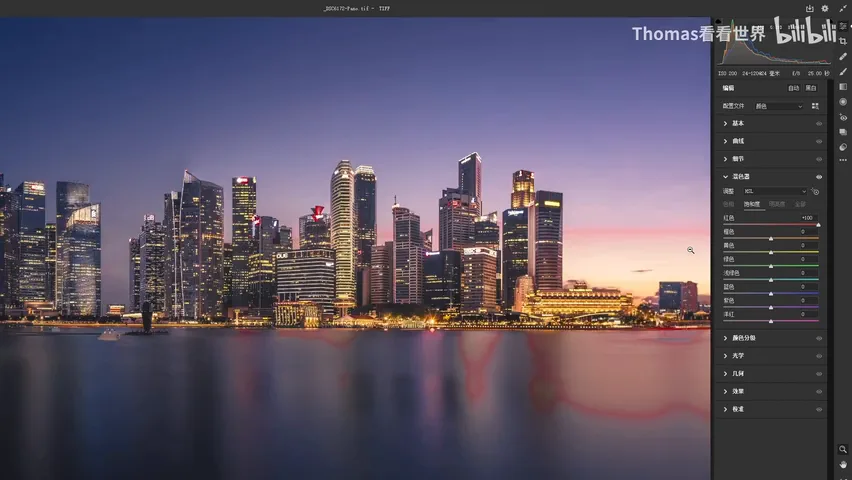
The second red line is large HSL moves. Take a sunset gradient sky: if you push red saturation to 100 in the HSL panel, brutal, jarring bands appear immediately (at 3:50 in the video — in the 3:52 screenshot above, the reflection in the water already shows a blotch of red banding).
The right move is to switch tools: frame the area with a Radial Filter and raise its overall saturation (at 4:07 in the video), or select it with a local adjustment tool or the lasso before boosting saturation. That way red, orange, yellow and the surrounding transitional purples rise together, keeping the gradient intact instead of yanking one channel alone (at 4:15-4:33 in the video).
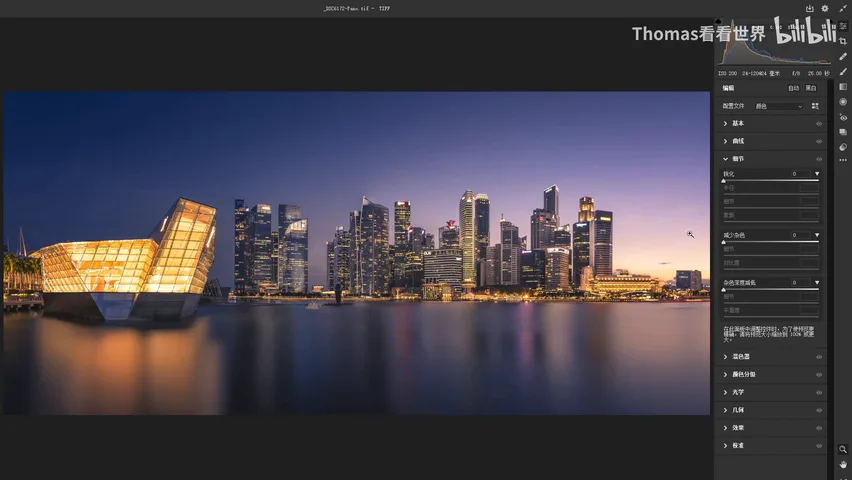
The third red line is the most counterintuitive: noise reduction. If the photo contains a flat sky, denoising can backfire. In the example, the sky is clearly noisy at 100% zoom, so the Details → Noise Reduction slider in the Camera Raw filter gets dragged straight to 100% (at 5:36 in the video) — zoomed in, the sky is spotless; zoom out, and rows of color bands appear (at 5:50-5:58 in the video). Denoise detail areas only, never flat skies: duplicate the layer first, denoise it, then mask the sky out with black so the denoise only touches the ground (at 6:01-6:29 in the video).
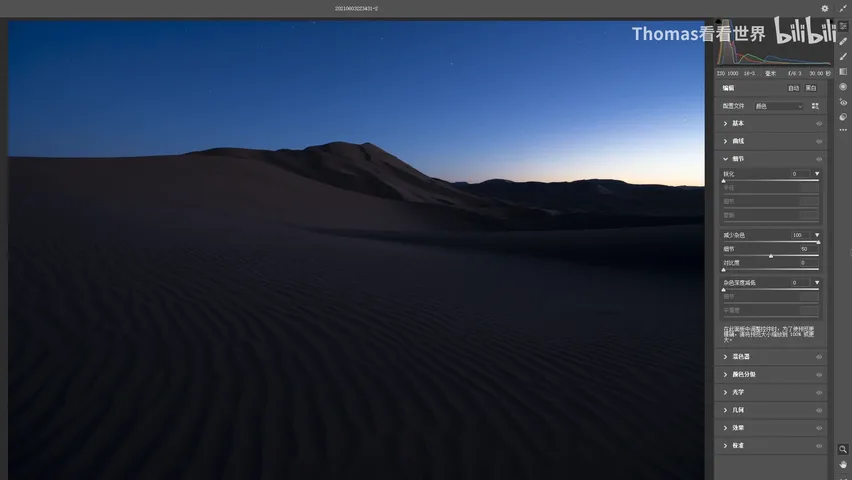
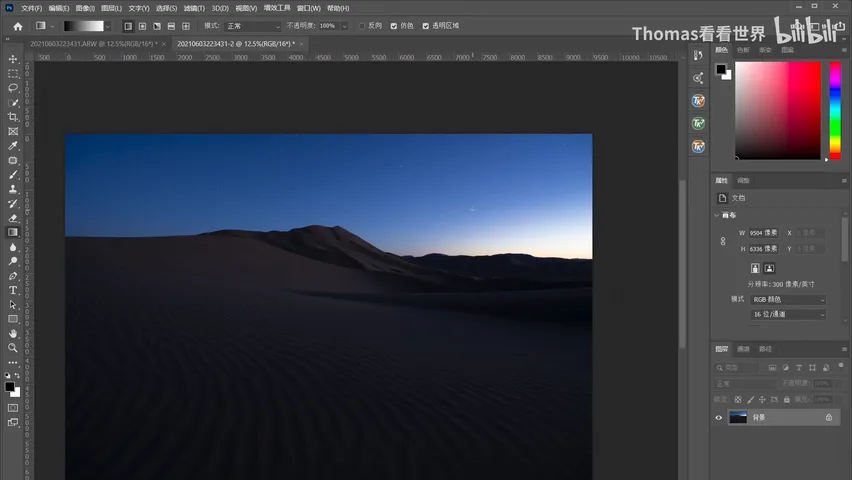
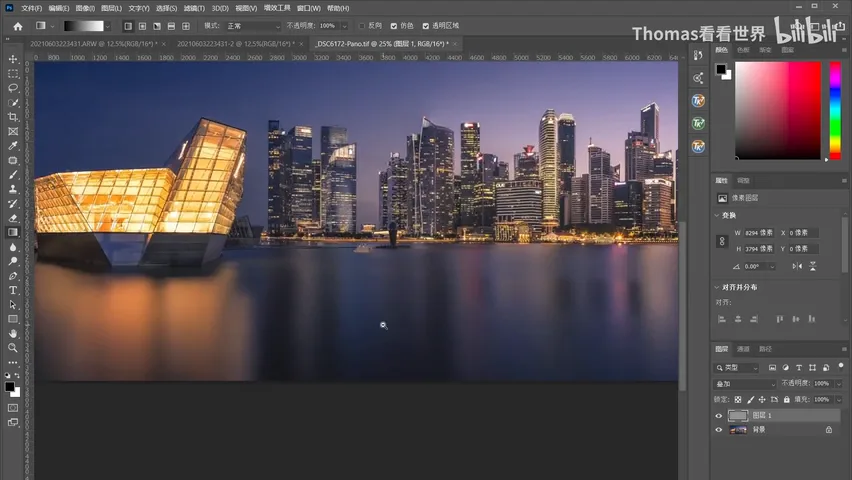
The fourth red line is motion blur. A normal water surface is full of fine texture and noise that conveniently mask any banding; once motion blur smooths the water into a pure gradient area, the bands stand exposed (at 6:41-7:02 in the video). This kind of banding cannot be fixed by conventional means — only the add-noise technique covered later can hide it.
03 Two Fundamental Fixes: Bit Depth and Dithering
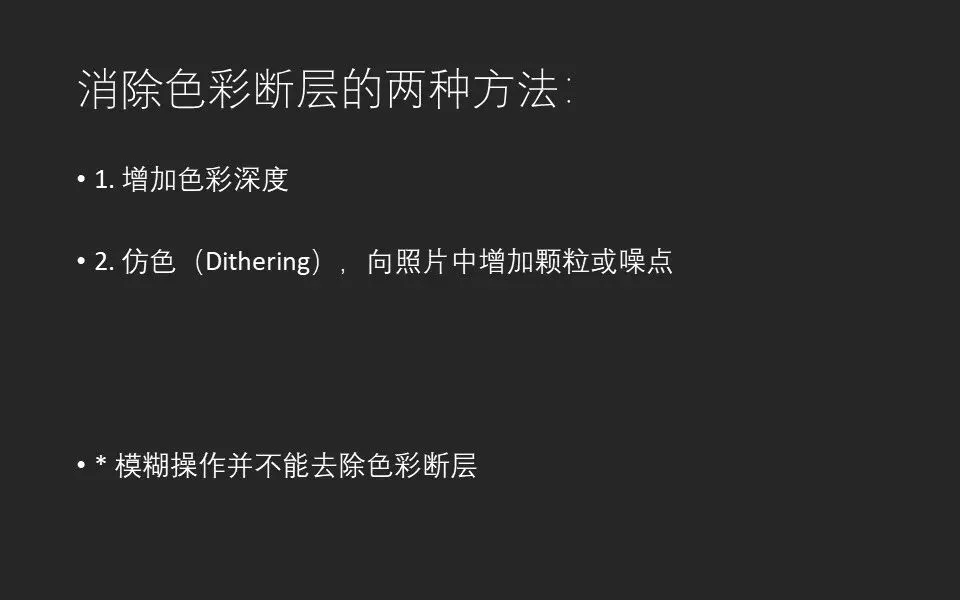
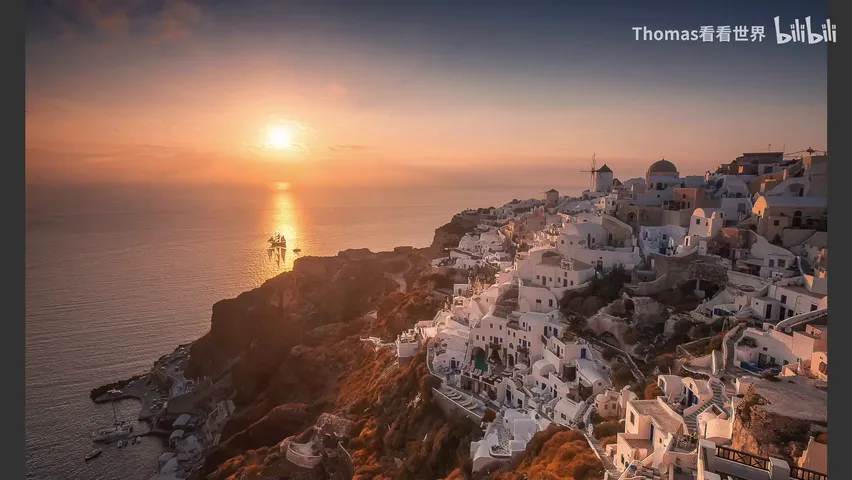
Fundamentally there are only two ways to eliminate banding. The first is to increase the color depth: as repeated throughout the video, always edit at 16-bit — it is the safe sweet spot; go to 32-bit and many Photoshop filters and operations stop working, so it is impractical anyway (at 7:11-7:33 in the video).

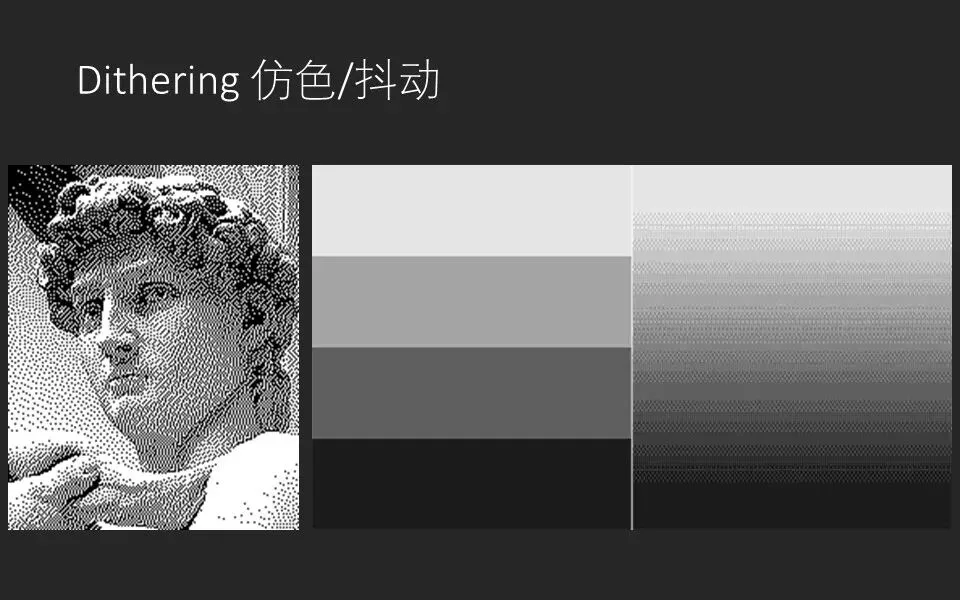
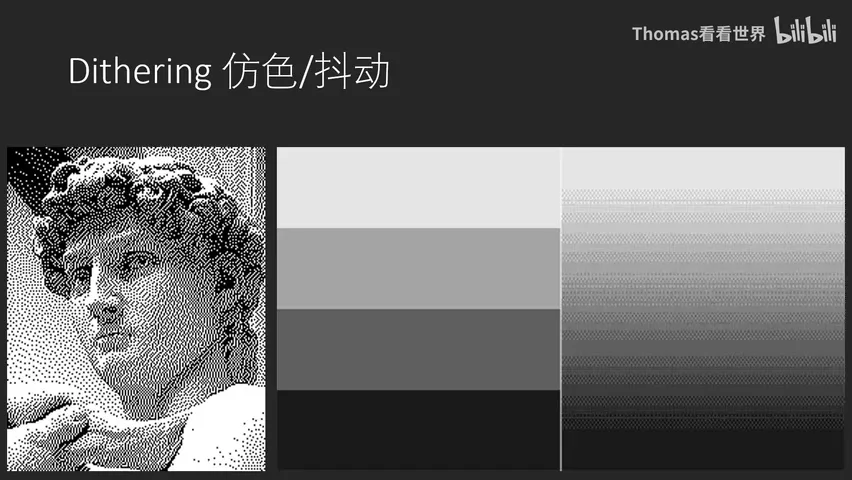
The second is dithering. The slide at 7:39 explains the principle: the statue of David on the left contains only two colors, black and white, yet the varying density of dots fakes convincing grays. Likewise, a banded gradient of just four grays turns into what looks like a smooth transition once dithered noise dots are interspersed — no new colors were added; the noise simply fools the eye (at 7:36-8:35 in the video). In Photoshop, checking the "Dither" box while dragging a gradient applies this algorithm automatically and keeps the gradient itself band-free (at 8:43-9:01 in the video).
04 Hands-On: the 50% Gray Overlay Noise Layer
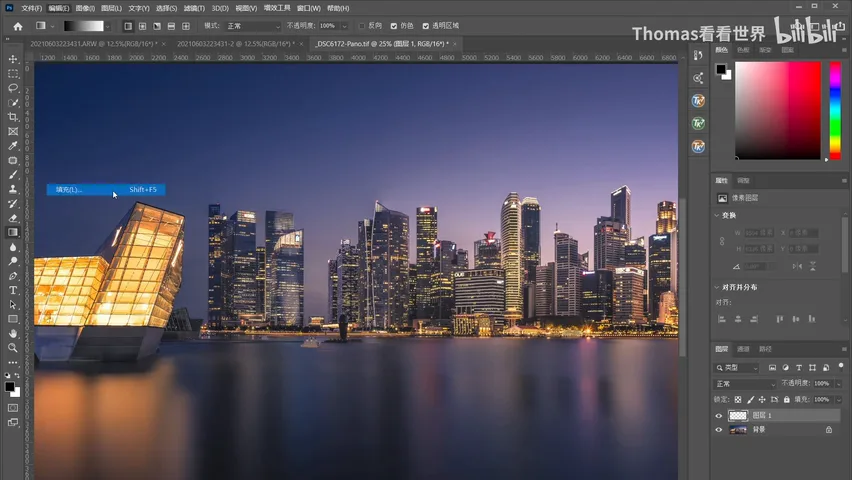
If banding already exists — say you applied motion blur to the water for a misty look — the only fix is to add noise, letting it emulate dithering and partially mask the bands (at 9:15-9:25 in the video). The recipe: create a new layer, run Edit → Fill with 50% gray, then set the blend mode to Overlay — 50% gray is invisible in Overlay mode, so only the black-and-white noise specks show (at 9:28-9:46 in the video).
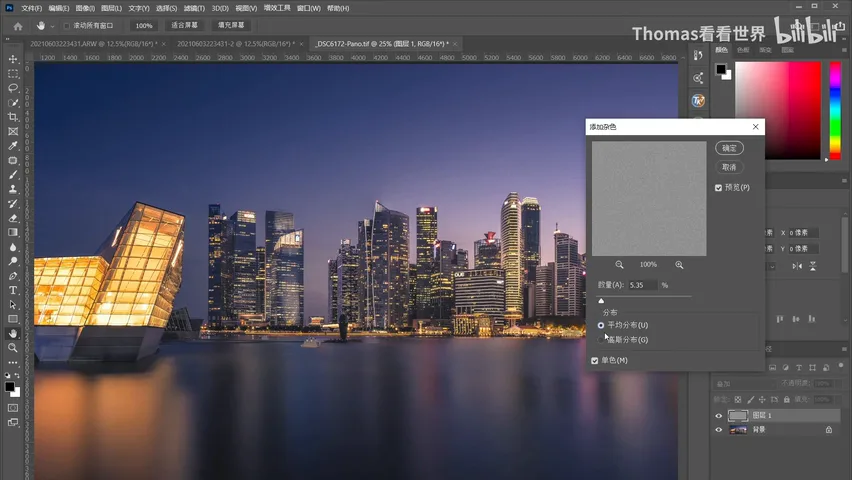
Next run Filter → Noise → Add Noise: Uniform or Gaussian distribution both work, Amount generally between 1% and 5%, and critically check "Monochromatic" — otherwise the added grain will be colored (at 9:47-10:08 in the video; the dialog is captured at 9:55 above). Finish by blurring the layer slightly — a Gaussian blur of about 0.5 pixels softens the specks (at 10:22-10:35 in the video).
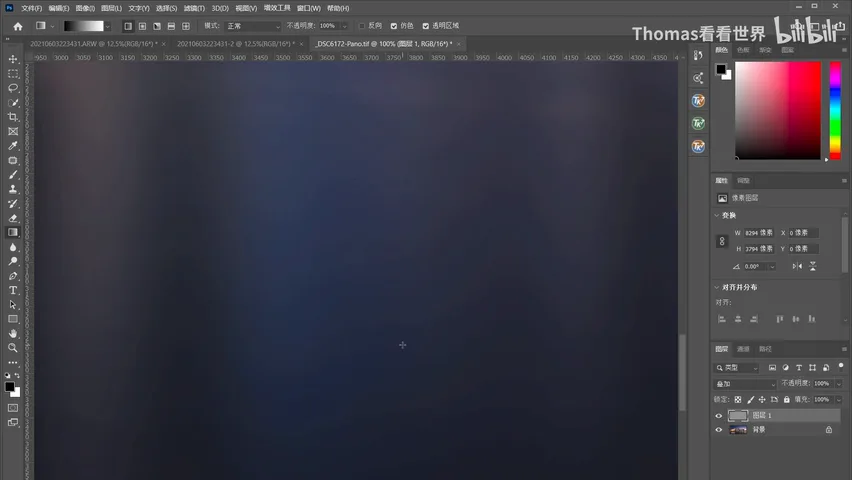
The effect is immediate: in the before/after at 10:44 in the video, the water and sky that banded badly look far cleaner after the noise was added (the two screenshots above show the banded close-up at 10:48 and the result at 10:52). Finally, control the scope with a layer mask: paint white only over the water and sky-transition areas where banding is worst, so the noise layer never touches the rest of the image quality (at 10:53-11:18 in the video).
1. Banding comes from the 8-bit limit of 256 levels per channel; gradient skies, near-flat skies, and misty water are the disaster zones. 2. Four prevention red lines: edit at 16-bit, avoid extreme HSL moves (use a radial filter or a selection to raise saturation overall), never denoise flat skies (isolate them with a black mask), and be careful with motion blur. 3. Only two fundamental cures exist: raise the color depth, or use dithering/noise to fool the eye. 4. For existing banding, add a 50% gray Overlay layer, apply 1%-5% monochromatic noise, soften with a 0.5-pixel Gaussian blur, and paint it in with a white mask only where banding shows.
PPT